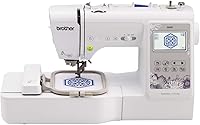
How to Update the Brother SE700
You update the SE700 by sending files over Wi-Fi, not by flashing firmware. Install Brother's free Design Database Transfer on your PC, put the machine on your wireless network, and transfer designs or fonts to the SE700 wirelessly.
On this page (9 sections)
- What does updating the Brother SE700 actually mean?
- How do you set up the SE700 for wireless transfers?
- Where do you find the Design Database Transfer software?
- How do you send a design from your PC to the SE700?
- Can you update the SE700 from a phone instead?
- What do you do when a wireless transfer won't go through?
- How do you keep the SE700's designs and stitches current?
- How does the SE700 compare with other Brother machines for updates?
- What should you do before your first wireless transfer?
You update the SE700 by sending files over Wi-Fi, not by flashing firmware. Install Brother's free Design Database Transfer on your PC, put the machine on your wireless network, and transfer designs or fonts to the SE700 wirelessly.
A USB drive works just as well when Wi-Fi isn't an option.
What does updating the Brother SE700 actually mean?
An update on the SE700 means moving embroidery designs and patterns onto the machine. The SE700 is a sewing and embroidery combo with 135 built-in designs, 10 embroidery lettering fonts and 103 built-in stitches.
None of that changes with a download.
What changes is your own library: the designs you buy, draw or download land on the machine and appear in its file list.
Brother built the SE700 for this workflow. It has wireless LAN on board and a built-in USB port, so files arrive either over your network or from a flash drive.
The wireless route leans on two tools. Design Database Transfer runs on a computer and sends files to the machine without a cable.
The Artspira app does the same job from a phone or tablet and also lets you draw new patterns.
There is no separate firmware file to install on the SE700. If a video or a forum thread sends you looking for a "system update," skip it and set up the wireless transfer path instead.
The built-in content stays as shipped, and your job is to feed the machine the files you want to stitch.
How do you set up the SE700 for wireless transfers?
Install Design Database Transfer on your computer first, then connect the SE700 to the same network. The free software sends embroidery files from your computer to the machine without a cable.
- Download Design Database Transfer from Brother's support site for the SE700.
- Turn on the SE700 and open its wireless settings on the touchscreen.
- Select your home network and enter the password on screen.
- Confirm the machine shows as connected.
- Open Design Database Transfer on the PC and let it find the SE700 on the network.
- Send a test design and check that it appears on the machine.
Run the setup once. After that, transferring a design is a matter of picking the file and sending it.
The SE700 weighs 15.6 pounds, so it's light enough to carry to a spot near the router for the first connection if your workspace sits far from the signal.
If your computer and the machine won't pair over the network, use the USB port instead and copy files to a drive the SE700 can read. The touchscreen guides you through selecting the drive and the design.
Where do you find the Design Database Transfer software?
Get it from Brother's support pages for the SE700 model. Search the model number, open the downloads section and pick the version for your operating system.
The software is free, and Brother lists it as the companion tool for wireless file management on machines like the SE700.
Keep the installer on hand for future computers. If you replace your laptop, you'll need it again to send files to the SE700.
Registration isn't needed to move files. You only create an account if you also want to buy designs from Brother's design platform.
What else can the SE700 talk to over Wi-Fi?
The same connection that carries your design files also opens up the Brother iBroidery platform, where more designs are available for the machine. PE-Design 11 1/2 is the step up if you want to create and send your own designs from a computer rather than the Artspira app.
None of these are required. The SE700 runs fine on its built-in library.
They matter once you want a bigger design collection or more control over what you stitch.
How do you send a design from your PC to the SE700?
Open the design in Design Database Transfer, pick the SE700 as the destination and send it. The file appears in the machine's design list when the transfer completes.
Accepted formats depend on the software and the machine.
Design Database Transfer handles the common embroidery formats, and the SE700's manual lists what it reads from a USB drive.
Watch the file size. The SE700's embroidery field is 4 x 4 inches, so a design larger than that won't fit the included hoop even if it transfers fine.
After sending, open the design on the 3.7-inch color touchscreen. Use the on-screen editing to resize or reposition before you hoop the fabric.
The 135 built-in designs and 10 lettering fonts are already on the machine and need no transfer at all, so use one of those when you just want to stitch and skip the setup.
Can you update the SE700 from a phone instead?
Yes. The Artspira app sends designs to the SE700 wirelessly from a phone or tablet.
You can draw a custom pattern on the screen, download patterns from the collection and push them to the machine.
Artspira also handles social sharing of finished projects. That makes it the quicker route when you sketch an idea away from the computer.
The app needs the SE700 on the same wireless network. Set up the machine's Wi-Fi once and both the PC software and the app can reach it.
Brother notes that compatibility can vary by device and operating system, so check the app listing against your phone before you count on it. Phone transfers suit small edits and quick one-off designs.
For a large library you've built up over years, the PC software is easier to manage.
What do you do when a wireless transfer won't go through?
Check the network first, then the file, then the machine. Most failed transfers trace back to one of those three.
- Network: confirm the SE700 and the computer are on the same Wi-Fi band and that the router hasn't changed passwords.
- Software: reopen Design Database Transfer and let it rescan for the machine.
- File: try a design you know works, such as one from the built-in library, to separate a file problem from a connection problem.
- Machine: power the SE700 off and on, then reconnect to Wi-Fi from the touchscreen.
If the wireless route keeps failing, switch to USB. Copy the design to a flash drive, plug it into the SE700's port and select it on screen.
The transfer is slower but it removes the network from the equation. The SE700's USB port also handles the job when your computer and the machine can't see each other on the network at all.
How do you keep the SE700's designs and stitches current?
Treat the built-in library as fixed and manage your own files instead. The 135 designs, 10 fonts and 103 stitches ship with the machine and don't get replaced by downloads.
The 103 stitches include 10 styles of one-step auto-size buttonholes, and those are set by the machine's own software.
What you can do is keep the design files organized on your computer. Name folders by project so Design Database Transfer is easy to browse when you sit down to stitch.
Delete designs from the SE700's memory when you no longer need them. A crowded file list slows down scrolling on the touchscreen and makes the design you want harder to find.
Since the embroidery field tops out at 4 x 4 inches, you can safely trim anything saved for a larger hoop.
For the wider process on other Brother models, our guide to how to update my Brother embroidery machine covers the steps that differ across the range.
How does the SE700 compare with other Brother machines for updates?
The SE700's wireless setup is its main advantage over older combo machines. If updates and file transfers matter to you, that's the feature to weigh.
The SE600 lacks the SE700's wireless LAN, so designs move by USB only.
Our Brother SE600 vs SE700 comparison covers that gap in detail.
The Skitch is a smaller, simpler machine aimed at quick monogramming. See Brother Skitch vs SE700 if you're choosing between the two.
If embroidery is your main interest rather than sewing, the PE800 and PE900 are dedicated embroidery machines. Our Brother PE800 vs PE900 comparison explains what changes between them.
What should you do before your first wireless transfer?
Run the Wi-Fi setup once, install Design Database Transfer, and test with one small design. After that, every update is a file you send rather than a trip to a computer with a USB drive.
Pick a design that fits the 4 x 4 inch hoop for the test.
Preview it on the 3.7-inch touchscreen, then hoop scrap fabric and stitch it before committing to a gift or garment.
The SE700's automatic needle threader and jam-resistant drop-in bobbin make that trial stitch simple to set up. If the test design stitches cleanly and the file list looks right, your update path works.
From there, how you update the Brother SE700 is just a habit: draw or download a design, send it wirelessly, preview it, stitch. The 8 included sewing feet and the included hoop cover the rest of the workflow, so nothing extra is needed to start.
For the physical side of the job, from hooping to stabilizer choice, the hoops and setup section has the guides that pair with this one. Getting the file onto the machine is only half the workflow, and the other half decides how the stitch-out looks.
Frequently asked questions
Does the Brother SE700 need firmware updates?
No. There is no system software to install on the SE700.
An update for this machine means sending designs and patterns to it wirelessly instead of with a USB stick.
Can I update the SE700 without Wi-Fi?
Yes. Load designs onto a USB drive in a format the SE700 reads, then plug the drive into the built-in USB port.
Wi-Fi only removes the cable and the drive from the workflow.
Do I need Design Database Transfer to use the SE700?
No. The SE700 works as a standalone machine with its 135 built-in designs, 10 fonts and 103 stitches.
The free software is for moving files from a computer to the machine, and the Artspira app covers phone transfers.
How do I know a design transferred to the SE700?
The machine's touchscreen shows the design in its file list once the transfer finishes. Open the file, preview it on the 3.7-inch screen and confirm the size fits the 4 x 4 inch field before stitching.
Can I transfer designs to the SE700 from my phone?
Yes. The Artspira app lets you draw custom patterns on a mobile device, download patterns and send them to the SE700 wirelessly.
It also covers sharing finished projects on social media.